Salesforce – From Process Builder To Lightning Flow – Decisions

Salesforce – From Process Builder To Lightning Flow – Getting Started
November 19, 2020
Salesforce – From Process Builder To Lightning Flow – Updating Records
November 25, 2020
Introduction
Salesforce is encouraging us to move away from Process Builder and start using Lighting Flow. As a result, it's important for us to learn Lightning Flow and start making this transition. In an effort to help simplify the learning curve, I've put together an eight-part series that shows just how similar Lightning Flow is with Process Builder.
Decisions
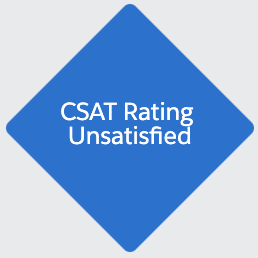 This second post will focus on the Decision element. In Process Builder the Decision is the blue diamond that instructs the process to go either down the true path or a false path. Flow also has a Decision element. Salesforce changed its color from blue to orange but its purpose is the same. It determines the path the flow will take.
Decision Criteria
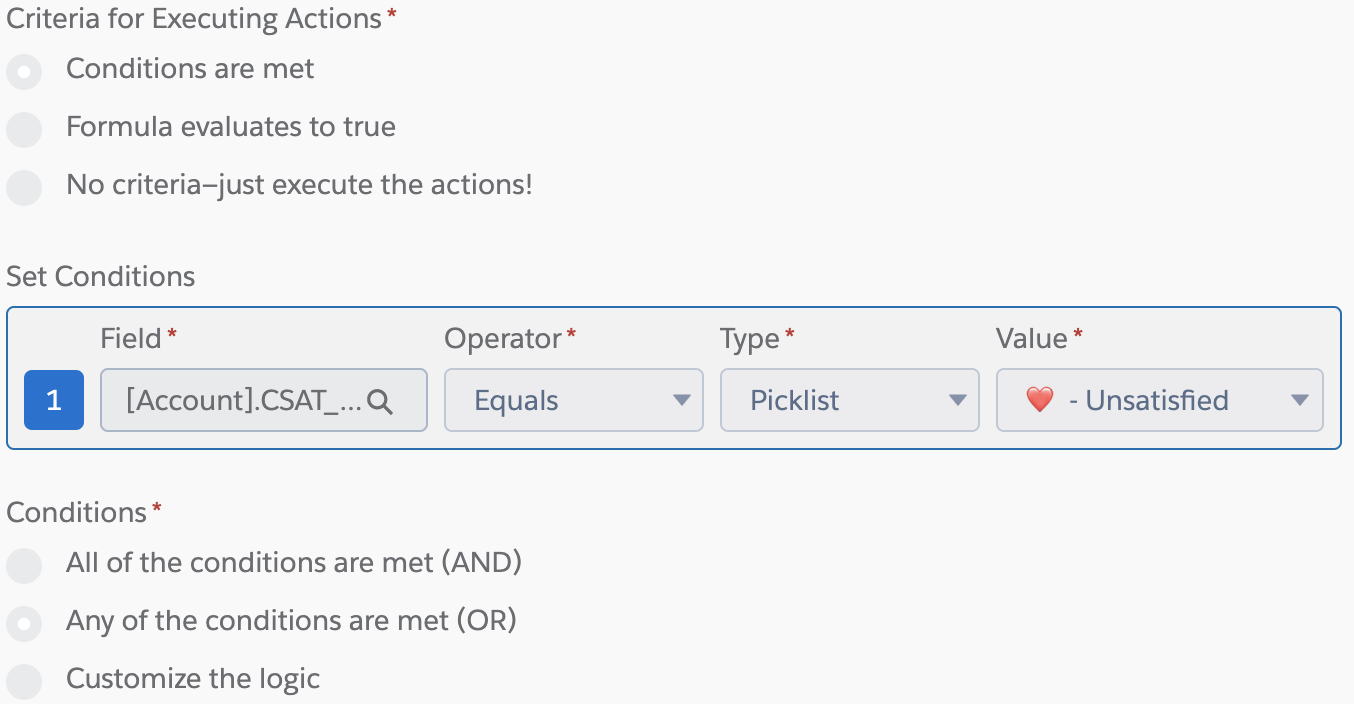 Both the Process Builder and Flow Decision elements need you to give them a name. Process Builder called it Criteria Name while Flow calls it a Label. That seems easy enough.
Both also have Conditions that when true, opens up the path to be followed. Here is where we have our first difference. Flow gives you the ability to define multiple Conditions which they call Outcomes. 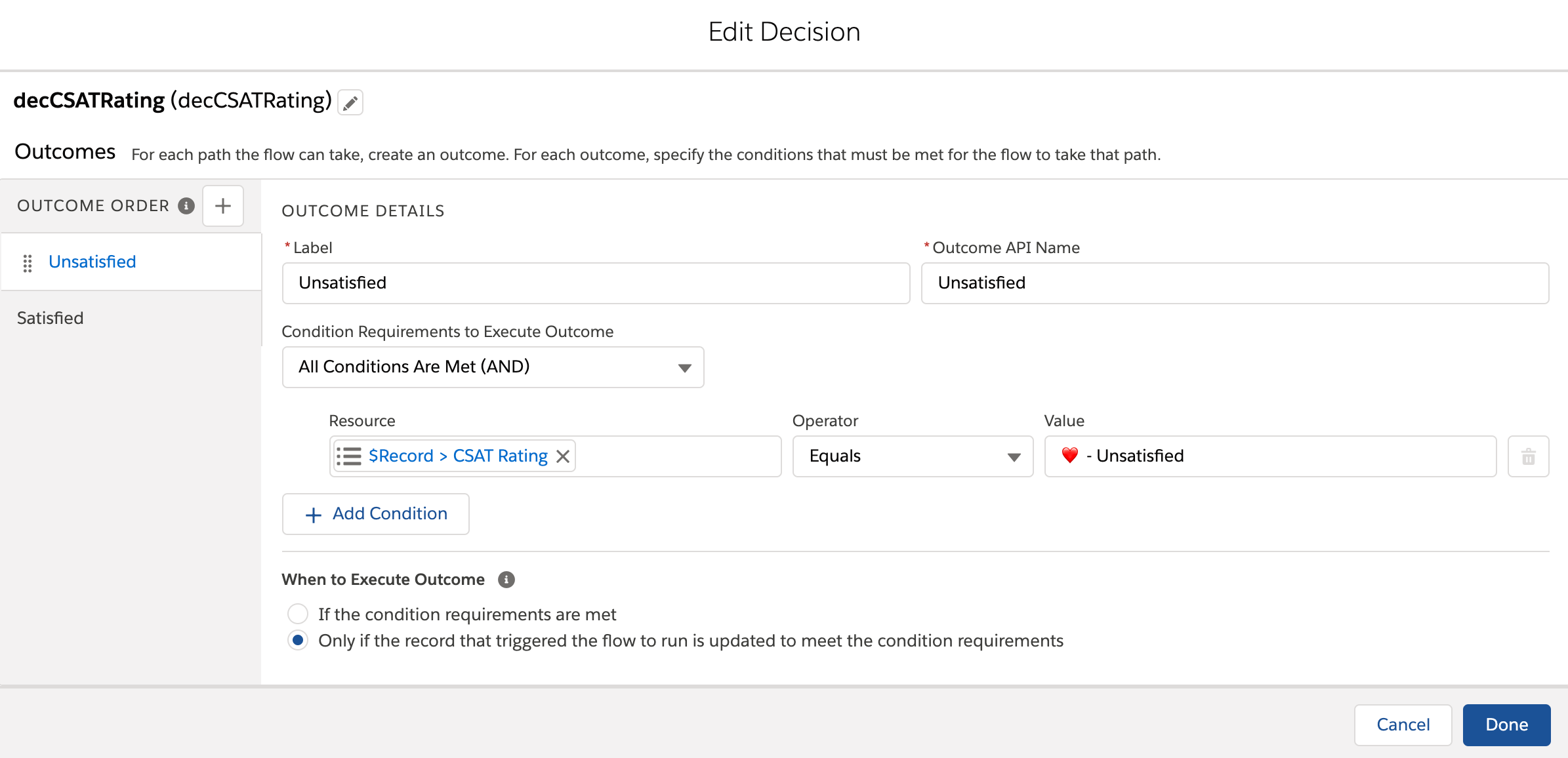 This is great because one Decision element can now have many paths as opposed to just a True/False path. This gives us the ability to use just one decision element whereas with Flow we'd have to have multiples. To create the additional path, just click the "+" plus button next to the Outcome Order label on the right side of the screen. Each Outcome option is shown in the left panel and clicking on them will display their criteria. If none of the criteria are met, the patch will proceed to the final outcome shown.
Additional Resources
Now, to see how this works in action, please watch the video. It shows you a side by side comparison between Process Builder and Flow and we build the Flow Decision live so you can follow along. Also below is a link to download the cheatsheet. You can use this as a quick reference guide while you're learning.
As always, if you have questions, please reach out. I look forward to sharing the remaining topics in this series so subscribe so you don't miss a post.